
 YouTube App Opener
What does it do?
InApp Redirect adds an app-opening route to your YouTube URL. The shared link is designed to help viewers reach the content in the YouTube app when available.
Create YouTube app-opening links with InApp Redirect and share them in Instagram, WhatsApp bios, Stories, emails, or messages. Help viewers watch your content, engage with your videos, and subscribe to your channel in the YouTube app when available.
Someone taps your link
Shared in a bio, Story, email or message
InApp Redirect handles the link
Uses the supported app-opening flow
Your YouTube content opens
In the app when available
Quick Answers
A YouTube app opener creates shareable links designed to open supported YouTube content in the mobile app. Use it when you want to help viewers move from a social post, profile, email, or message to your content in YouTube.
InApp Redirect adds an app-opening route to your YouTube URL. The shared link is designed to help viewers reach the content in the YouTube app when available.
Creators, video marketers, and community managers sharing YouTube content with mobile audiences across Instagram, WhatsApp bios, Stories, newsletters, and DMs.
Shortening changes the length of a URL. App-opening links add routing toward a supported app destination; a shorter URL alone does not guarantee that YouTube will open.
The YouTube destination, installed app, device, and source browser affect the result. Check your generated link from the placements you plan to use, including any prompts and website fallback.
Fit Check
Choose this flow when YouTube is the destination and the mobile app is where you want viewers to watch and engage.
YouTube links shared on social media may open inside an in-app browser. InApp Redirect helps route supported links to the YouTube app, where viewers can use their existing app session if signed in.
Open your video on YouTube and copy its link using the Share menu, or copy the video URL from your browser.
Sign in to InApp Redirect and paste your YouTube URL into the link-creation tool. Follow the dashboard instructions to generate and copy your app-opening link.
Open the generated link on the devices and social apps your audience uses. Check the app-opening behavior and available website fallback. Some environments may require an extra tap or confirmation.
Add the tested link to your Instagram, WhatsApp bio, Story link sticker, email or another supported clickable placement.
Copy your generated InApp Redirect link, then choose the Instagram, WhatsApp placement below. Use the Instagram, WhatsApp mobile app to add a profile link or publish a Story with a link sticker.
If you use a link-in-bio page, add the generated YouTube link to a button there and check the complete path from your Instagram, WhatsApp profile.
If the Link sticker is missing or Instagram, WhatsApp rejects the URL, follow the options Instagram, WhatsApp provides. Publishing the link does not guarantee that the YouTube app will open.
App opening and browser opening are different. Opening Safari or Chrome does not itself open YouTube. See the Instagram, WhatsApp in-app browser guide for browser context, or SmartLink for website routing.
How your YouTube link opens depends on the device, source browser and whether the YouTube app is available. Review the scenarios below and test your generated link from the places you plan to share it.
Supported links can open in the installed YouTube app. Device settings and the browser where the link is tapped can affect the result. Test your generated link from each intended placement and check whether it opens the correct content in the app or remains in the browser.
A supported link can open in the YouTube app when it is installed. Where the link is tapped and the viewer’s choices affect what happens next. If a confirmation appears, viewers can choose to continue into the app; otherwise, the link may remain in the browser.
Where supported, the link uses a YouTube website fallback when the app is unavailable. Desktop viewers should expect to view the content on YouTube’s website. Check your generated link on desktop and on a phone without the app to confirm that the website destination opens.
If an open-in-app prompt appears, viewers can follow it to continue. If the link remains in the browser, they can use an external-browser option when offered or open the original YouTube URL themselves. The link cannot override the source browser’s restrictions.
A YouTube app opener creates links designed to open supported YouTube content in the mobile app rather than an in-app browser. The result depends on the device, source browser and app availability.
Sign in to InApp Redirect, paste your YouTube URL into the link-creation tool, and generate your app-opening link. Copy and test the link before sharing it.
Yes. Add your generated URL to an Instagram, WhatsApp profile link or a Story link sticker where available. Test it from Instagram, WhatsApp on the devices your audience uses.
InApp Redirect offers app-opening journeys for both platforms. That does not mean every YouTube URL opens identically: browser rules, device settings, and the installed YouTube app affect the result.
A short link makes a URL shorter. A YouTube app-opening link adds routing intended to open supported content in the YouTube app. Some links can do both; shortening alone does not guarantee app opening.
InApp Redirect generates shareable app-opening links from supported YouTube URLs. It does not download videos, create videos or host YouTube content.
Don’t let an in-app browser get between your audience and your next video. Create YouTube app-opening links that help viewers watch, like, comment, and subscribe in the YouTube app when available.
Create your YouTube app link
Turn your supported YouTube URL into a shareable app-opening link with InApp Redirect.
Create a YouTube App LinkCreate your link in the InApp Redirect dashboard.
Discover how to boost social media ads ROAS results by bypassing Instagram’s InApp Browser using InApp Redirect. Improve user experience, tracking accuracy, and conversions effortlessly.

Discover how in-app browsers are hurting your social media ad conversions by limiting user experience. Learn how you can redirect users to default browsers, save their session, and boost your conversion rates with InApp Redirect!
Discover what happens after a Facebook or Instagram ad click, why browser choice matters, and how InApp Redirect helps visitors take the next step.
Discover methods for directing links to open in the system browser rather than within the confines of an in-app browser for a better browsing experience.
Your social ads earned the click. Discover how InApp Redirect helps improve the journey to your website with Domain Setup, SmartLinks, and browser routing.
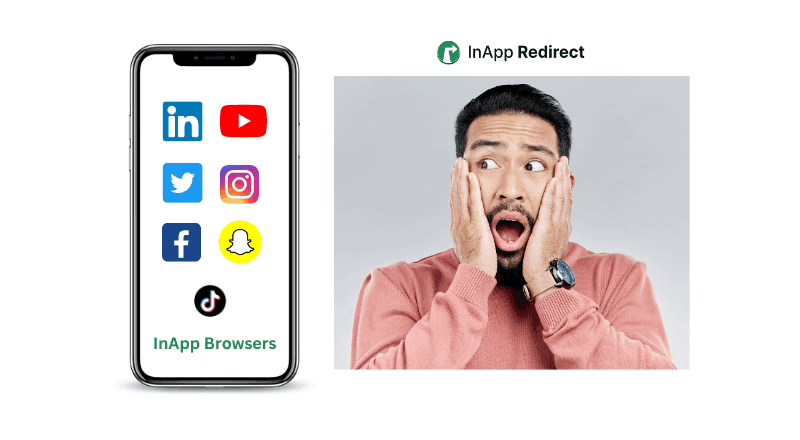
Understand the difference between in-app browsers and default browsers and how they impact your browsing experience.
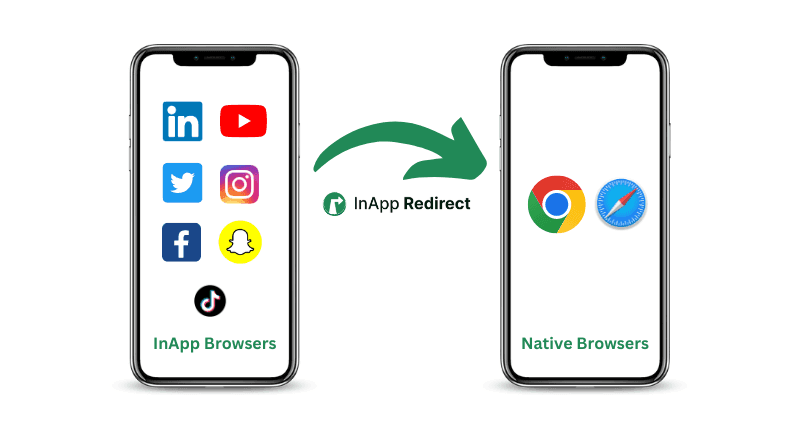
Follow simple steps to direct URLs to open in external browsers for improved functionality and accessibility across various devices and platforms.
Improve Meta ads performance by fixing in-app browser issues. Redirect users to native browsers to increase ATC, checkout completion, and ROAS.
Instagram links not opening? Find out whether it’s a broken URL, browser issue, or app-opening problem—and how InApp Redirect can help visitors continue.
Discover how redirecting social ad clicks to native browsers can enhance your Return on Ad Spend (ROAS) and improve campaign performance.
Discover how to bypass Facebook’s in-app browser to boost your website conversions and improve ROAS. Learn how InApp Redirect ensures a seamless user experience.
Learn about the security considerations of in-app browsers and how to ensure a safe browsing experience.
Brands, Creators and Influencers use InApp Redirect to turn high-intent social traffic into journeys that feel faster, convert better, and measure cleanly.