
What Is Meta’s In-App Browser? What Happens After Your Ad Click
Imagine a customer scrolling through Instagram during a lunch break.
Your ad catches their attention. It features the holiday package they were comparing yesterday. They tap, recognise your website, and choose to check their booking.
Then a login screen appears.
They remember signing in earlier. Their password is saved somewhere. They could request another OTP—but lunch is almost over, and a new notification has just arrived.
Your campaign earned their attention. The next few steps will decide what that attention becomes.
For businesses running Facebook and Instagram campaigns, this is a journey worth experiencing firsthand. The destination URL is only part of the experience. The browser opening that destination can matter too.
Here’s what marketers should understand about Meta’s in-app browser—and where InApp Redirect can help.
What Is Meta’s In-App Browser?
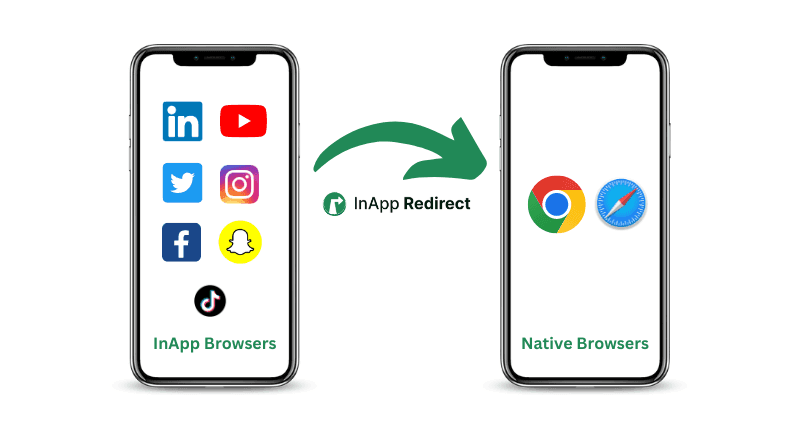
“Meta’s in-app browser” commonly refers to the browsing experience that opens website links within apps such as Facebook and Instagram. A visitor can view your website while remaining inside the social app’s interface, rather than switching to a separate browser app such as Safari or Chrome.
It is a useful umbrella term, not a guarantee that every Meta app uses an identical browser implementation.
For a marketer, the practical question is straightforward:
When someone opens your website from your campaign, can they comfortably complete the action you invited them to take?
That action could be buying a product, requesting a property viewing, renewing a service, reading subscriber content, or managing a booking.
What Happens After Someone Clicks Your Ad?
Consider the journey from the customer’s perspective.
They see a promise in your ad. They tap the link. Your website opens. They try to act.
Along that journey, three things need to work together:
- The destination: The link reaches the correct, working page.
- The browsing experience: The page, forms, navigation, and authentication behave as expected.
- The next action: The visitor can complete the purchase, enquiry, booking, or other goal.
A landing page can look excellent in your desktop browser and still need attention on a phone inside a social app.
That is why checking that a URL loads is only the beginning. Test what the visitor needs to do after it loads.
For a closer look at the underlying differences, read our guide to in-app browsers versus default browsers.
Why a Returning Customer Might Be Asked to Sign In Again
Your customer may already have an active website session in their usual browser.
If a campaign opens the website in a different browsing environment, that session may not be available there. The website can then ask them to authenticate again.
For the customer, the distinction between browser environments is invisible. They simply see another login screen.
However, browser behaviour varies. Some in-app browsing technologies share browser state: for example, Android Custom Tabs can share the preferred browser’s cookies and saved information. It would be inaccurate to say that every in-app visit starts logged out.
The opportunity is to identify the journeys where a browser change helps.
When a visitor continues in an external browser where they already have a valid website session, they may be able to pick up more easily. InApp Redirect helps with that browser journey; it does not create a login or transfer cookies between browsers.
The Opportunity Extends Beyond Ecommerce
A purchase is only one reason someone might need a familiar browser experience.
Think about the customers you have already persuaded to return.
Travel and hospitality
A traveller follows a campaign link to review a reservation, choose an upgrade, or book another trip. Access to an existing account can make the next step more convenient.
Insurance and subscription services
A customer clicks a renewal reminder or service offer. The useful outcome is reaching the relevant account or renewal page and completing the required steps. Any authentication required by the service still applies.
Real estate
A prospective buyer returns to saved listings or opens a viewing enquiry form. Test whether they can review the property and submit their details smoothly.
News and media
A reader follows a link to an article. If they already have a valid subscription session in their external browser, opening the article there may make access easier.
Education and training
A learner returns to a course, enrolment page, or student portal. The campaign has brought them back; the website experience should help them continue.
Ecommerce
A returning shopper follows an offer or replenishment reminder. An existing account session and familiar browser features may help them move toward checkout.
These are different industries with a shared opportunity: make it easier for interested visitors to complete the next step.
Explore more InApp Redirect use cases to identify a journey worth testing in your business.
How InApp Redirect Helps Visitors Continue
InApp Redirect gives businesses a way to offer an external-browser journey on supported visits.
The experience can look like this:
- A customer taps your campaign link.
- Your configured InApp Redirect setup identifies an eligible browsing environment.
- The visitor is offered a choice to continue externally.
- After choosing to continue, they reach the destination in the available external browser.
- They proceed with the action your campaign invited them to take.
The value is practical: you can test a different browser journey for traffic you are already attracting.
Start with one destination where completing an action matters—a booking page, an enquiry form, a subscriber article, or checkout.
Then choose the setup that matches how you manage that destination.
Choose Domain Setup for Your Own Website
If you control the website and want to offer external-browser routing across its pages, use Domain Setup.
It provides a site-wide approach, so you do not need to replace each campaign destination with a separate SmartLink.
For example, a travel business might run campaigns to destination pages, offers, and booking pages. A website-level setup lets the team manage the browser-routing experience centrally.
Start by testing your most important campaign journeys on the devices your audience uses.
Choose SmartLink for Individual Website Links
If you want to manage selected links—or send visitors to a website you do not control—use SmartLink.
This suits a creator promoting a partner’s website, an agency testing a specific campaign, or a business starting with one destination.
Choose a working website URL, configure the link, and test it from the actual placement where people will encounter it.
Domain Setup fits website-wide routing. SmartLink fits individual website links.
If your intended destination is an installed mobile app rather than a website, explore App Opener for supported app destinations.
Test Instagram and Facebook as Separate Customer Journeys
A successful test in one placement does not establish how every other placement behaves.
For Instagram, follow the journey from the relevant ad, Story, profile, or message. For Facebook, test the placement you actually use to reach customers.
Keep the destination and intended action clear. Check:
- Whether the correct page opens.
- Whether the visitor sees the expected browser choice.
- Whether the destination remains correct after switching.
- Whether login, forms, booking, or checkout work.
- Whether campaign parameters and conversion events are recorded correctly.
For Instagram-specific setup, explore Instagram in-app browser bypass.
For Facebook campaigns, read our Facebook in-app browser guide.
Bring the Same Thinking to WhatsApp Campaigns
The journey often continues after the first ad click.
A customer discovers your business on Instagram, explores your website, and later returns through a WhatsApp message.
That return visit deserves the same attention as the original campaign.
A booking reminder, renewal message, subscriber update, or product offer should lead to a clear next action. Test how those links open in the message formats and devices your customers use.
WhatsApp in-app browser bypass explains how InApp Redirect can support eligible external-browser journeys for this traffic.
The business opportunity is making your existing customer communication easier to act on.
How to Know Whether Browser Routing Helps Your Campaign
Return to the traveller who clicked your ad.
The useful outcome is a completed booking or enquiry. An external-browser opening is an intermediate step, not the final result.
Before launching a test, choose the action you want to improve:
- Completed purchases.
- Submitted enquiries.
- Confirmed bookings.
- Completed renewals.
- Successful account access.
- Subscription sign-ups.
Where possible, compare randomly assigned groups during the same period, using the same offer and destination. Include visitors who decline the browser switch or encounter a failed handoff, so the results reflect the full experience.
Track both completion rate and the business value of those completions. Verify your measurement across the browser change; keeping URL parameters is only one part of attribution.
Our guide to testing native-browser redirects for social ads ROAS explores this next step. You can also visit Meta Ads ROAS to connect browser routing with your campaign goals.
Frequently Asked Questions About Meta’s In-App Browser
Is Meta’s in-app browser the same as Chrome or Safari?
The term describes a website-opening experience within a Meta app. Its implementation and available features can vary. Opening a link in the separate Chrome or Safari app is a different journey, even though some in-app browser technologies can share features or state with an external browser.
Does every Facebook or Instagram link open inside the app?
Do not assume identical behaviour for every link. The app, device, settings, placement, and destination can affect what happens. Test the exact journey your campaign uses.
Can customers open a link in an external browser themselves?
Depending on the interface, they may have an option to open externally or copy the URL into their preferred browser. Businesses can use InApp Redirect to offer an external-browser path on supported journeys.
Will an external browser automatically sign customers in?
An existing valid website session in that browser may let them continue without another login. The website’s authentication requirements still apply. Browser routing does not create or transfer a session.
Can InApp Redirect fix a broken destination URL?
A broken or unavailable destination needs to be corrected first. InApp Redirect helps with how visitors reach a working destination.
Should I use Domain Setup or SmartLink?
Choose Domain Setup when you control the website and want routing across its pages. Choose SmartLink for individual website destinations, including destinations you do not control.
Does opening an external browser guarantee better conversions?
The result depends on your audience and website journey. Use a controlled test to establish whether the routing experience helps more visitors complete the action that matters to your business.
Your Next Campaign Already Has a Journey Worth Improving
Before commissioning another creative or increasing your budget, follow one of your own ads on your phone.
Go beyond the landing page.
Try the login. Complete the form. Open the booking. Follow the same steps your customer would take.
You may discover a useful opportunity in traffic you are already paying to attract.
Choose one important destination and test it with InApp Redirect.
Use Domain Setup for your website, or create a SmartLink for a specific campaign.
Your ad creates the reason to click. Give that interest a clear next step.
Written by
About the author

Shubham Saurabh
Connect on LinkedInShare this article
Found it useful? Pass it along.